How to Build Landing Pages in Drupal Quickly? From Paragraphs to Drupal Canvas
If you think Drupal is designed only for developers, and that marketing specialists have to ask for every change, it's time to update your knowledge. Nowadays, marketers can think of a campaign one day and build a landing page the next. This is possible thanks to the committed community and thousands of modules. Three of them have completely changed the way landing pages are built and deserve a special mention. In this article, we will show you how to create pages using with drag & drop method.

Why Do Marketers Need Low-Code Solutions in Drupal?
Why Do Marketers Need Low-Code Solutions in Drupal?
Time moves faster in business than in everyday life. There are many ideas, but due to limited time, only the most important ones make it to implementation.
Getting a product to market quickly is crucial these days. Time-to-market reflects how quickly a company moves from concept to the point where a product starts generating profit. For some, this means the moment of concept approval, while for others, it’s the first sale. This is why marketing teams are increasingly turning to low-code solutions. They want to work faster, test ideas, and implement changes without involving developers at every stage. Drupal meets these needs. Thanks to modules such as Paragraphs, Layout Builder, or Drupal Canvas, managing content in the system is no longer difficult.
Editors can make changes directly on the page – swapping photos, editing sections, and rearranging content without switching between complex back-end views and forms. Furthermore, components created once can be used in multiple locations and content types. The page layout is not rigidly tied to a single template or content type.
This is especially useful for seasonal campaigns and content. For example, if you’re launching a product that requires different communication (e.g., for the holidays), you can create a landing page that differs from other pages on the website. This approach simplifies managing marketing campaigns in Drupal and shortens implementation time. Marketers take control of the landing page, without worrying that IT won’t have enough time or resources to support them.
Available Tools: How Have We Built Websites So Far?
Available Tools: How Have We Built Websites So Far?
Until recently, building a landing page in Drupal required creating a separate template for each subpage and configuring the content type so that the marketing department could edit as many elements as possible. In practice, this meant that even a simple landing page required significant time and effort.
This began to change with the release of Drupal 8 and the Paragraphs module. Later came Layout Builder, and now Drupal Canvas is the latest solution. Thanks to these tools, setting up landing pages in Drupal has become much easier. Developers simply need to create reusable components, and editors can use them to build pages according to campaign needs.
Drupal Paragraphs
Drupal Paragraphs is a module that introduces a new entity type and allows you to create your own components with any fields.
For example, if you want to display a specific person’s contact details, you need fields with name, surname, phone number, and job title. Developers design the structure and appearance, and editors use it in various places and content types.
Who is it for?
This solution works best for websites where editors need control over the page layout and flexible content management, but without worrying that adding another paragraph will break the design.
Cons
Paragraphs allow for managing the landing page’s layout, which was impossible before. However, changing the visual style of individual components still requires the developers’ involvement. Furthermore, the editor can only see the results after saving the content.
Pros
The biggest advantage of Paragraphs is the freedom to build a landing page layout. Interestingly, the editor's limited ability to edit components’ appearance – often considered a drawback – actually works to the project’s advantage. This approach ensures cleaner code, increases security, and reduces the risk of design inconsistencies.
Layout Builder
The module allows editors and site builders to quickly and easily create visual layouts for displaying content. Editors can customize how the content is presented, whether on a single page or across an entire content type. With a drag-and-drop interface, they build layouts combining fields from a given content type and Drupal blocks.
Who is it for?
For those who enjoy creating page layouts with no limitations and feel comfortable doing so. An ideal tool for teams responsible for website development.
Cons
Building a landing page with Layout Builder still relies on editing forms, and the final result is fully visible only after saving the changes. Furthermore, creating pages with Drupal blocks can be cumbersome.
Pros
Layout Builder lets you easily adjust the layout for a specific subpage or content type. The use of pre-defined blocks, placed in appropriate containers, ensures a consistent look and feel despite the extensive editing options.
Drupal Canvas
Drupal Canvas is the biggest game-changer for building landing pages in Drupal. This module transforms standard Drupal into a full-fledged page builder. Thanks to ready-made components, editors can design pages themselves using drag-and-drop, and see the results immediately.
Who is it for?
Drupal Canvas is perfect for companies that value quick page creation and modification, testing variants, and working independently on landing pages without involving the technical team at every stage.
Cons
The freedom offered by Drupal Canvas can lead to straying from the website's style. Therefore, a well-defined design system is necessary, with components having appropriate constraints to prevent the site from becoming inconsistent.
It’s also worth remembering that Drupal Canvas is a relatively new solution, and not all scenarios can be handled by it alone.
Pros
Drupal Canvas significantly simplifies editors' work. Creating content and managing landing pages is much simpler and faster. Every change is visible immediately while editing, without switching between the backend form and the page preview.
Paragraphs, Layout Builder, or Drupal Canvas?
Paragraphs, Layout Builder, or Drupal Canvas?
| Drupal Paragraphs | Drupal Layout Builder | Drupal Canvas | |
|---|---|---|---|
| Workstyle | Structural editing (forms, fields) | Arranging the blocks in the editor, section configuration | Visual page building (drag&drop) |
| Preview | After saving and reloading the page | Visible while arranging the layout | Immediate |
| Layout philosophy | Stability and integrity | Flexibility through configuration | Freedom within components |
| Learning curve | Medium – requires understanding the field structure | Medium – a tool for site builders | Low – intuitive for marketers |
| LP building time | Standard implementation process | Dependent on configuration and component preparation | Quick – ready-made components available immediately |
| IT role | Creating and developing components | Layout configuration | Marginal – delivering the components |
How to Build a Landing Page with Drupal Canvas?
How to Build a Landing Page with Drupal Canvas?
1. Install the Drupal Canvas module.

2. Select Pages.
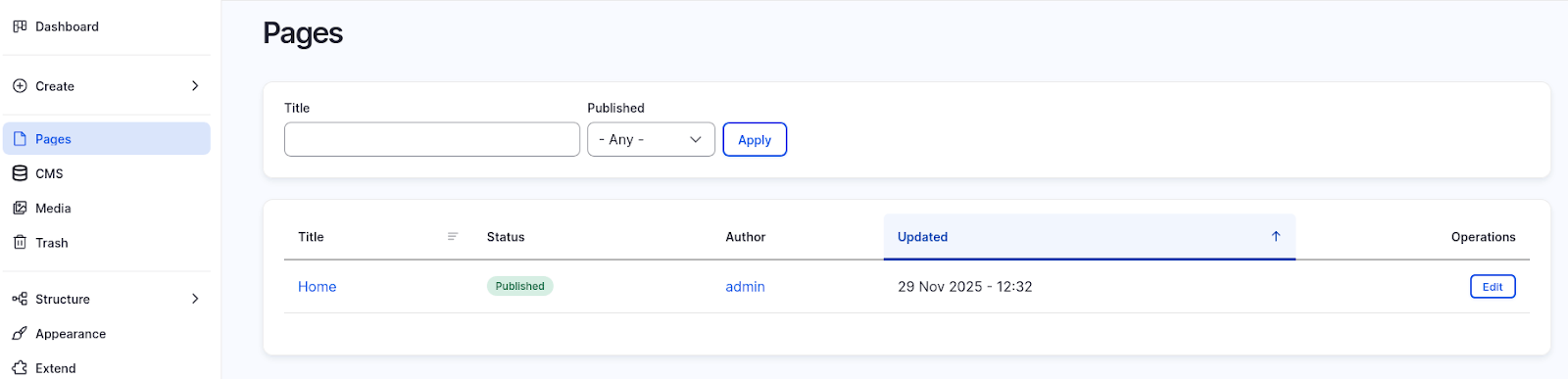
In this view, you’ll see all the pages you can edit using Drupal Canvas. Go to the home page’s edit screen.
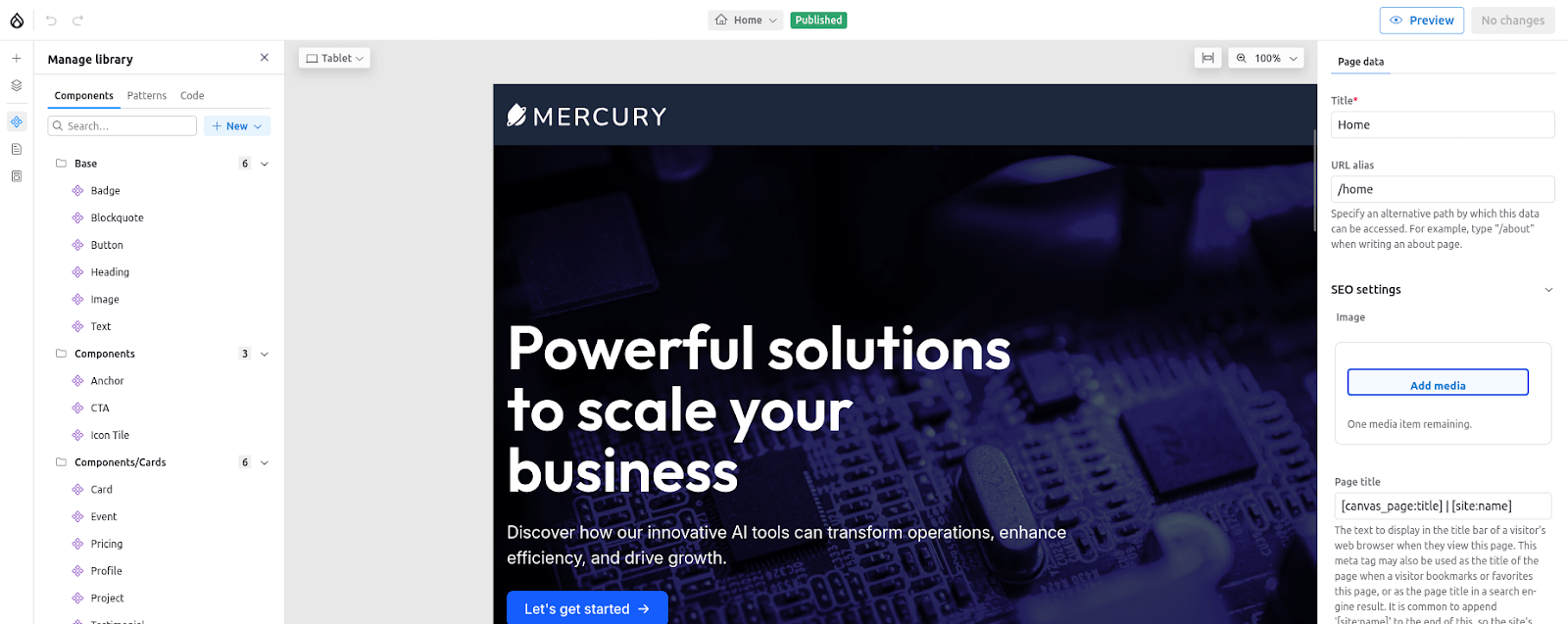
3. The interface is divided into three sections. On the left is a panel with available components, pages, and layers. The right panel displays page settings or – if you’ve selected a specific component – its editable properties. In the center, you’ll see the workspace for your content.
4. Add a new page.
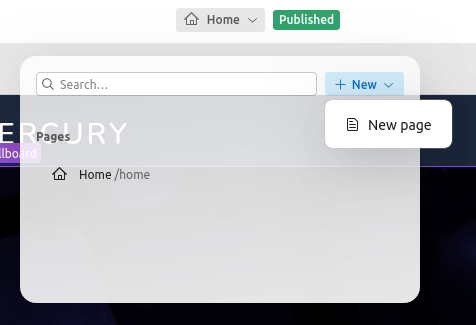
5. You will see global regions like the Header and Footer; these are consistent across the whole website, but can still be edited in Drupal Canvas.
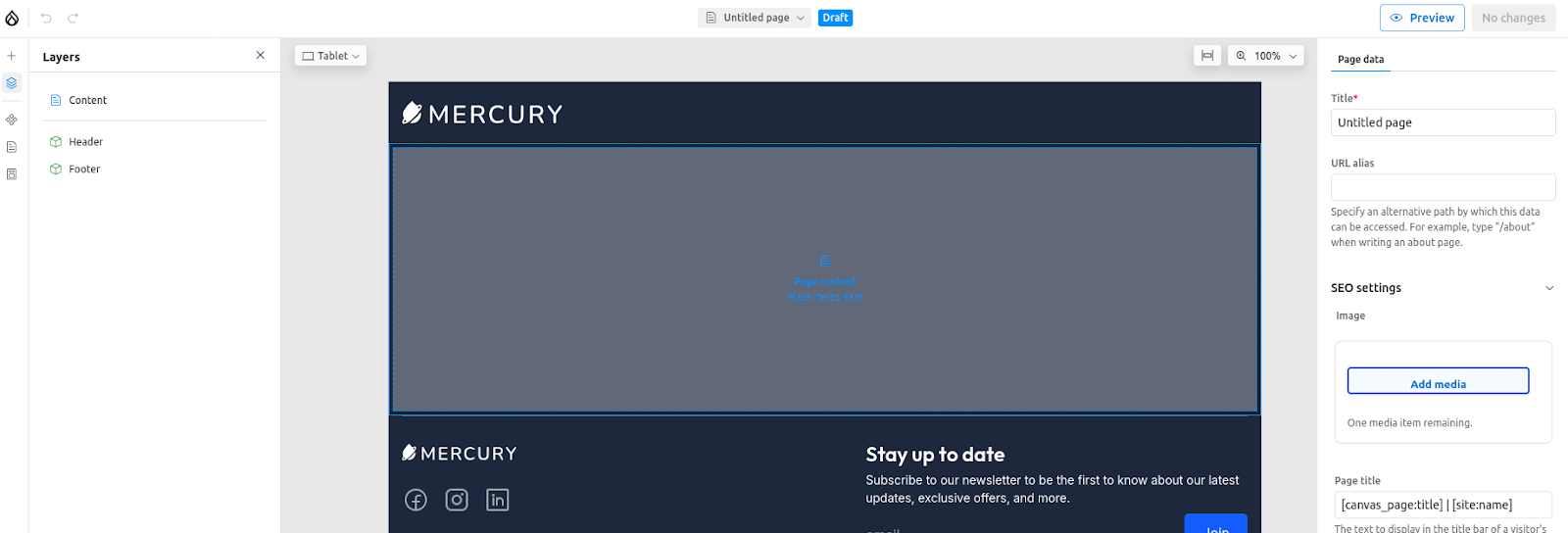
6. Create a page with, say, a standard CTA and contact form. Select the CTA component from the left-hand panel and drag it into the content area.
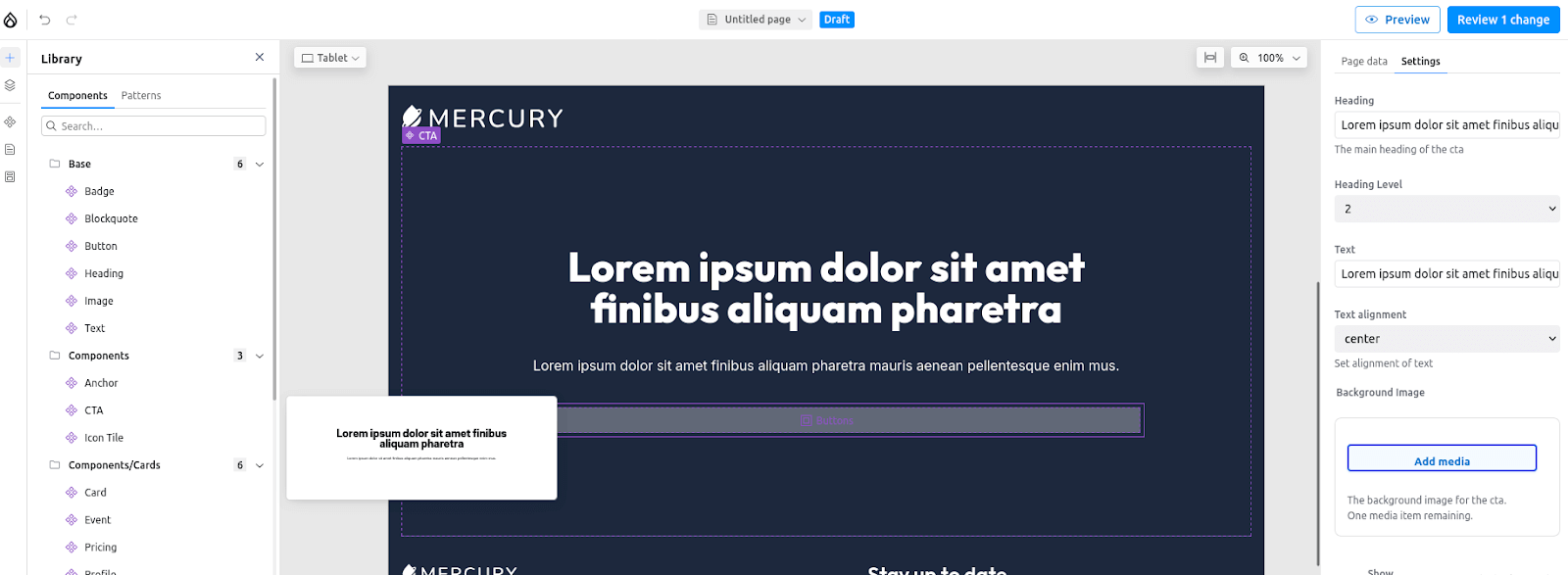
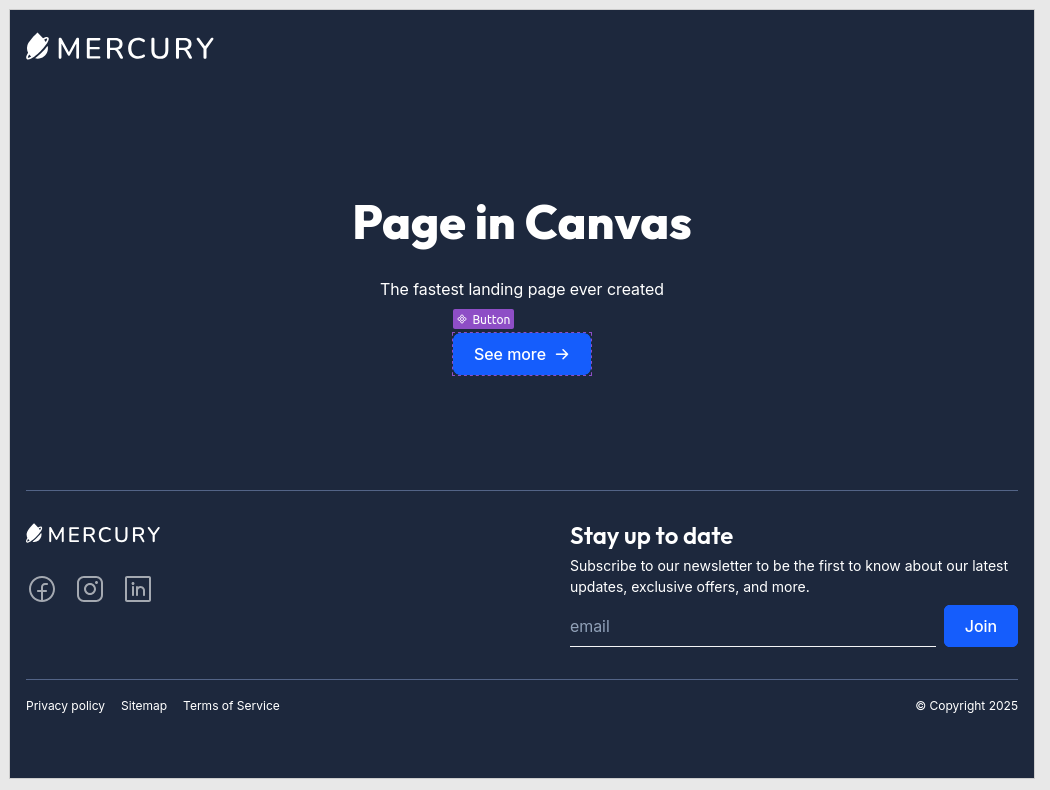
Once you do that, its editable properties will appear in the right-hand panel. Below the text, there’s also a slot where you can add another component. For example, a Buttons slot indicates where a button component should be placed. After adding it, you can modify the content right away.
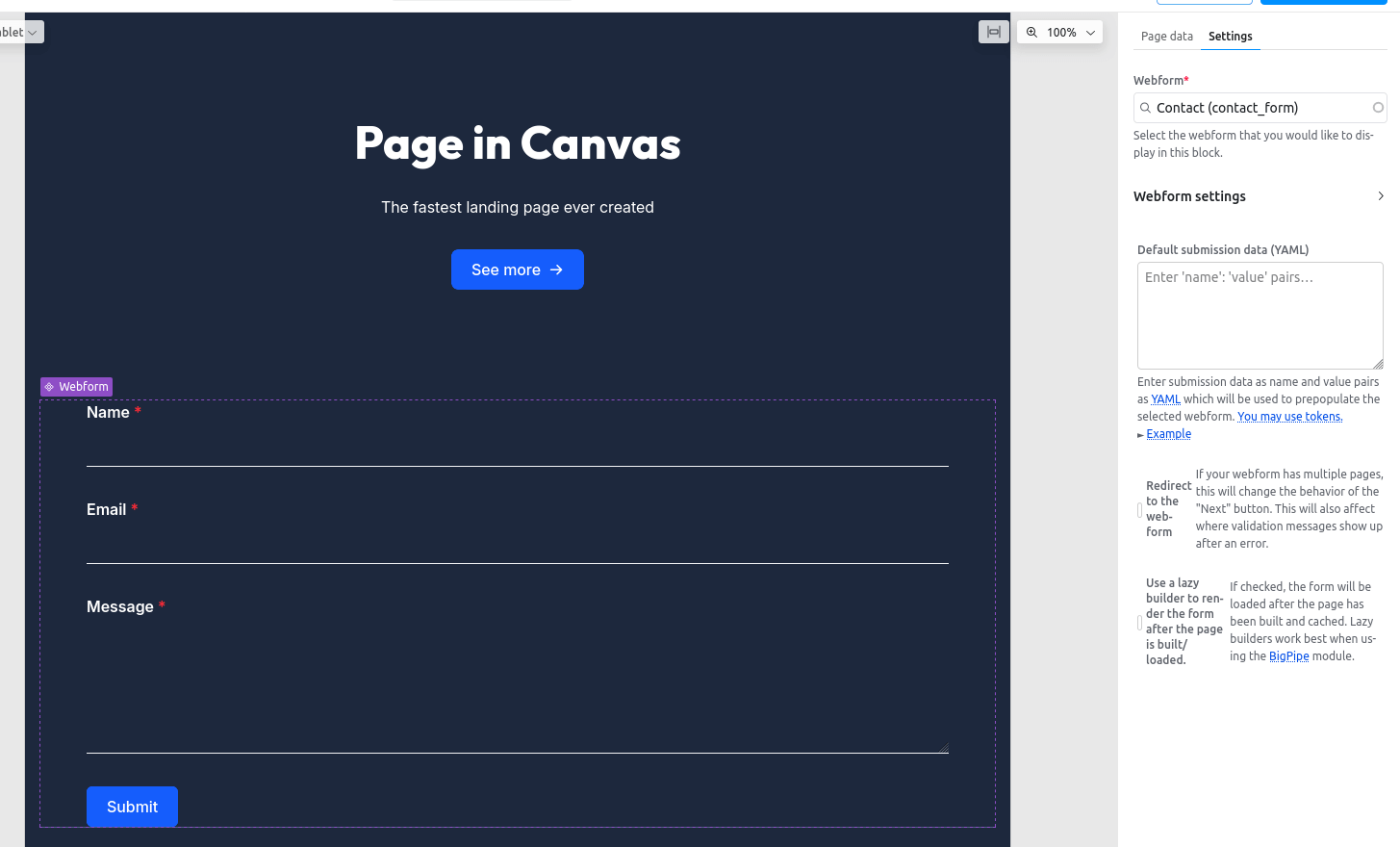
7. If you have the Webform module installed and have created forms, simply select the Webform component and choose the appropriate form.
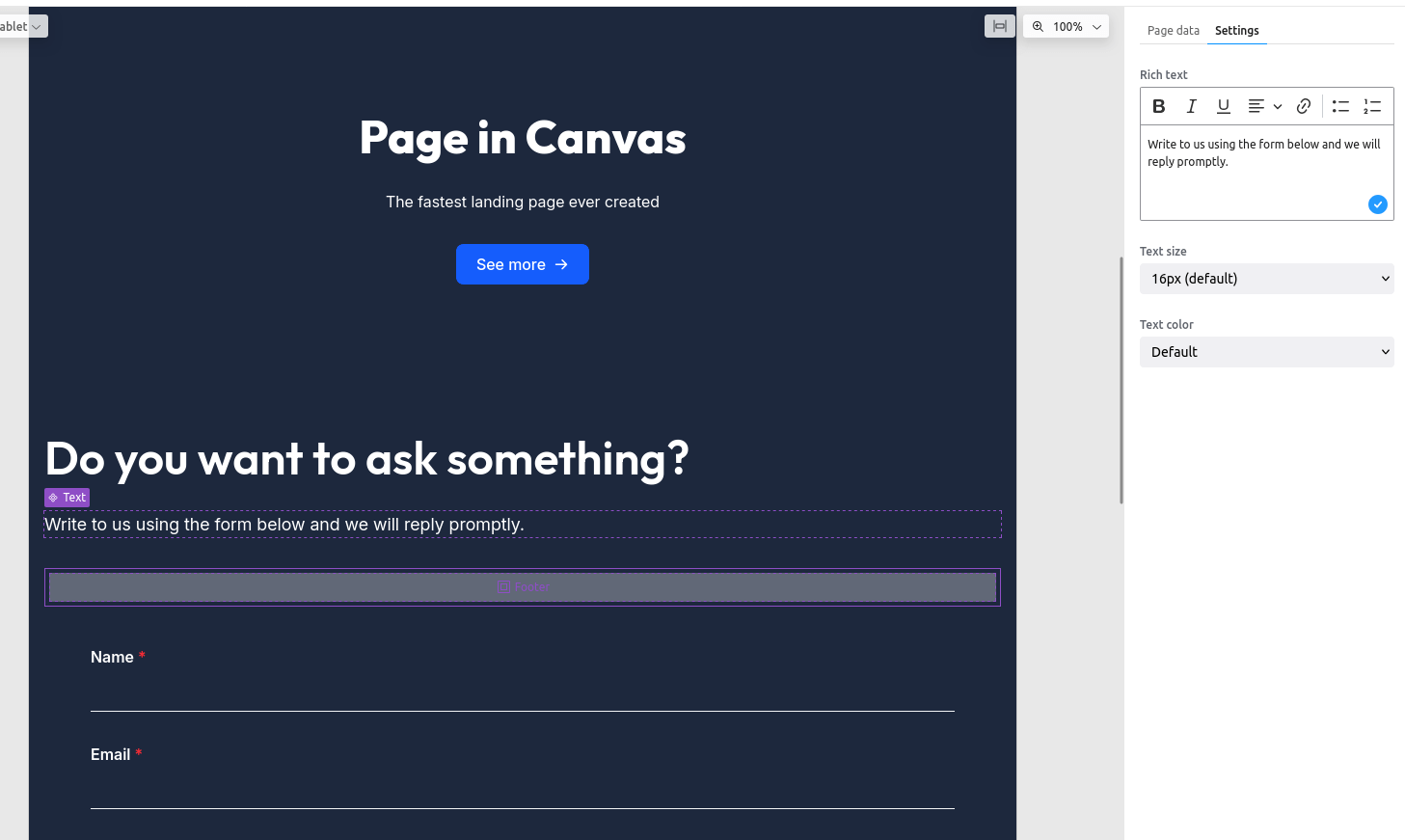
8. It’s worth adding a section of text before the form. To do this, select the following components: Section, Heading, and Text. Place this section between the CTA component and the form.
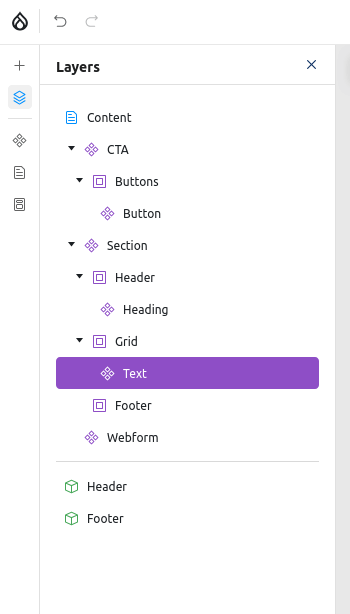
9. The left panel also includes a layer view that shows the components currently in use. Clicking on an element allows you to edit or reposition it by dragging.
Summary
Summary
Drupal consistently develops tools that transform the way we work with content and campaign pages. Modules such as Paragraphs, Layout Builder, and Drupal Canvas give marketers increasing autonomy while maintaining technical and visual consistency across the website.
Thanks to ready-made components and a low-code approach, building landing pages is no longer dependent on every minor IT change. Marketers can react faster, test different variants, and launch campaigns precisely when needed.

 Denis Peszka